
Excel was the first consumer software tool to achieve massive adoption on personal computers, fundamentally changing how businesses handle data.
Nearly four decades later, it remains the world's most widely used tool for data processing and analysis across virtually every industry.
Given Excel's ubiquitous role in business workflows, it makes perfect sense to integrate AI capabilities directly into this familiar environment.
When you integrate Large Language Models (LLMs) into Excel spreadsheets, you unlock powerful text analysis and generation capabilities: automatically categorize customer feedback, extract insights from survey responses, generate text using specific prompt parameters, etc.
To leverage LLMs effectively for data processing, you don't need expensive plugins or new software platforms. While countless companies are rushing to sell specialized SaaS products, the answer can be as simple as integrating AI directly into the Excel. Whether using local models for complete privacy or cloud APIs for maximum power, this integration brings enterprise-level AI capabilities to your existing Excel workflows.
Step 1: Set Up Your Local LLM
The easiest way to get started with local AI is using LM Studio, a free application that makes running language models as simple as downloading an app. Visit lmstudio.ai and install the application on your computer.
Once installed, browse their built-in model library and download a model like Mistral Small 3.2, GEmma 3, GPT-OSS, etc. This download will take a few minutes depending on your internet speed and model size, but it's a one-time setup.
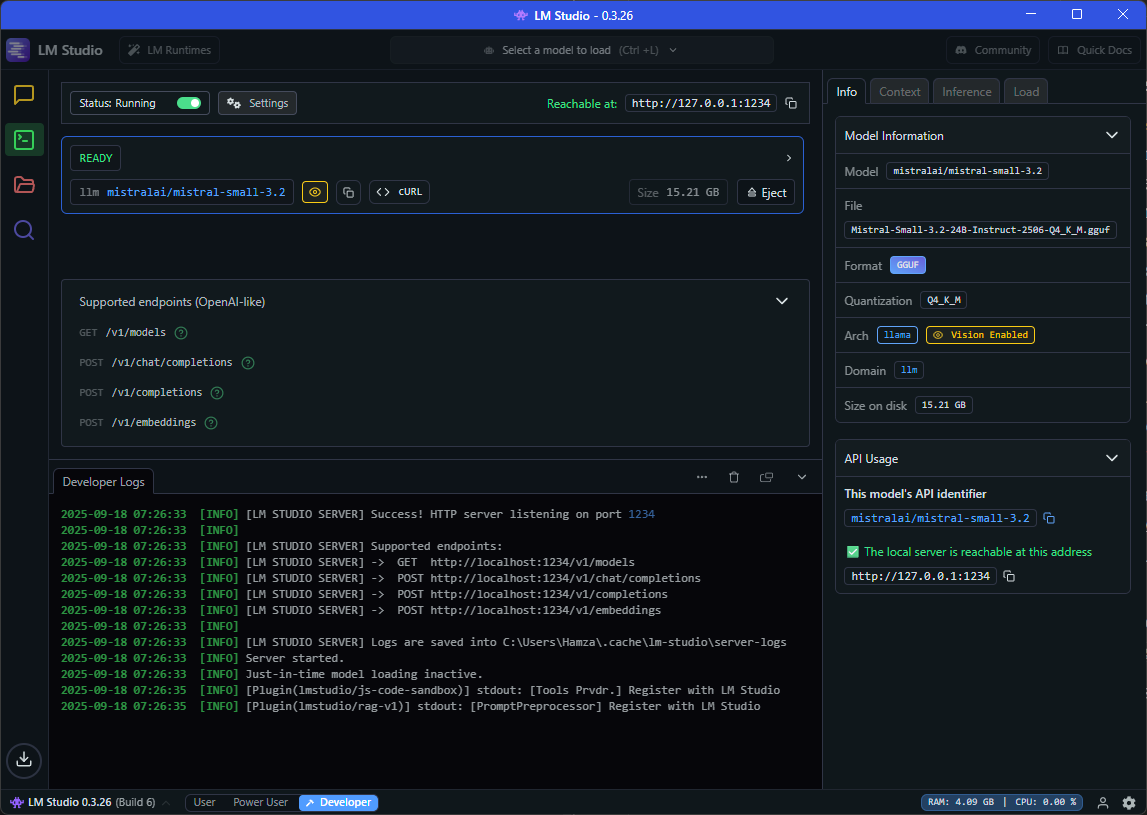
After your model is downloaded, navigate to the Developer tab and start the server. LM Studio will provide you with a local API endpoint, typically http://localhost:1234, which is exactly what we'll need for the Excel integration.
The beauty of this setup is that once your local server is running, your Excel integration will work completely offline with your data never leaving your computer.
Step 2: Generate Your VBA Integration Code
Here's where the magic happens. We'll use an LLM to write the Excel integration code for us. This meta-approach saves hours of coding and ensures we get a robust, working solution.
Open your LM Studio chat interface (or whichever LLM you're using) and paste this prompt:
I need a VBA macro for Excel that can communicate with a local LLM API. The requirements are:
1) Create a function that takes text from a cell and a prompt as inputs
2) Send HTTP POST requests to localhost:1234 using the OpenAI-compatible format
3) Parse the JSON response and return just the content 4) Handle errors gracefully with fallback messages
5) Make it work as a formula like =ASKLLM(A1, 'Summarize this text')
6) Include proper error handling for network timeouts and JSON parsing issues. Please provide the complete VBA code ready to paste into Excel.
The LLM will generate a complete VBA function that handles all the technical details: HTTP requests, JSON parsing, error handling, and Excel integration. This typically produces 50-100 lines of code that would take hours to write and debug manually.
The beauty of this approach is that you get production-ready code written by an AI that understands both Excel VBA and modern API patterns. Copy the generated code - we'll implement it in the next step.
Step 3: Implement the Code in Excel
Now we'll take the VBA code your LLM generated and get it running in Excel.
Open Excel and press Alt + F11 to launch the VBA editor. You'll see a project window on the left side. Right-click on your workbook name and select Insert, then Module. This creates a new code module where we'll paste our AI-generated function.
Copy the entire VBA code from your LLM conversation and paste it into this new module. The code will likely include a function called something like ASKLLM that handles all the HTTP communication with your local model.
Save your workbook as an Excel Macro-Enabled Workbook (.xlsm file) so your custom function persists. Excel will prompt you about this when you try to save.
In my testing, this approach worked on the first try. However, if you encounter any issues like connection errors or formula problems, don't panic, simply copy the error message and paste it back to your LLM along with your VBA code. Ask it to debug and fix the issue. LLMs are excellent at troubleshooting their own code and will quickly provide you with a corrected version.
That's it for the setup. Your Excel spreadsheet now has AI superpowers built right in. Close the VBA editor and return to your normal Excel worksheet to start using your new AI function.
Advantages of Using This Approach
Here's where Excel's native capabilities create something truly powerful:
Combining Multiple Inputs for Richer Analysis
Excel lets you reference multiple cells in your AI prompts, creating sophisticated analysis.
You can use a simple formula to combine feedback, purchase data, and support history into one comprehensive prompt. Example:
=ASKLLM(A2&" "&B2&" "&C2, "Analyze this customer profile for retention risk")
You can also make your prompts themselves parametrable where one column contains your base prompt and another column customizes the analysis focus for each row.
=ASKLLM(D2, E2&" and focus on "&F2&" aspects")
The Power of Dragging Formulas
Write your AI formula once, then drag it down across hundreds of rows. Your local LLM will systematically process each piece of data, applying consistent analysis while adapting to each entry. Whether you're processing 10 customer reviews or 10,000, the effort is identical. That said, I wouldn't recommend overdoing it, be mindful of your system resources and processing time for large datasets.
The Local Advantage
Running AI locally means your sensitive data never leaves your computer, there are no API costs as you process thousands of rows, and you can work offline without worrying about service outages or rate limits. Your AI assistant is always ready.
That said, this same Excel integration approach works equally well with cloud APIs like OpenAI or Claude, or even LLMs hosted on your company's cloud servers.
This combination creates a scalable, flexible interface for applying sophisticated AI analysis to real business data using tools you already know.
Conclusion
This approach gives you AI-powered text analysis directly in Excel using either local models or cloud APIs. The setup takes minutes, the code is generated by AI itself, and it scales across thousands of rows with familiar Excel operations.
You get sophisticated text processing without learning new tools or paying for expensive plugins. Local models keep your data private with no ongoing costs, while cloud options provide better performance when needed.
It's a practical way to add AI capabilities to the spreadsheet tool you already use every day.